Help
Author Bear helps you find out which Amazon book categories your book belongs to, and which other books are selling well in those categories. You do not need any special computer skills — just copy and paste. Follow the steps below.
Step 1: Find your book's ASIN
An ASIN is the ID number that Amazon gives to every product. It is 10 letters and numbers, for example B0DHV4DGVJ. Here is how to find it:
- Open amazon.com in your web browser.
- Search for your book and click on it to open the book's page.
- Look at the address bar at the top of your browser. You will see a web address like this:
https://www.amazon.com/dp/B0DHV4DGVJ?tag=something&ref=more-words
- The 10 letters and numbers right after
/dp/are your ASIN. In the example above, the ASIN is B0DHV4DGVJ. - You can copy just the ASIN, or copy the whole address. Author Bear understands both.
Step 2: ASIN Search — find your book's categories
Author Bear asks Amazon which categories your book belongs to, and shows you the most important one first.
- Click the ASIN Search tab at the top of the page.
- Paste your ASIN (or the whole address from step 1) into the box, then press the Search button.
- Wait a few seconds while Author Bear talks to Amazon.
If your book sells in a market other than the United States, pick it from the Marketplace dropdown on the tab before you press Search — it defaults to the United States. The categories, product counts, and bestseller links you get all apply to the marketplace you chose.
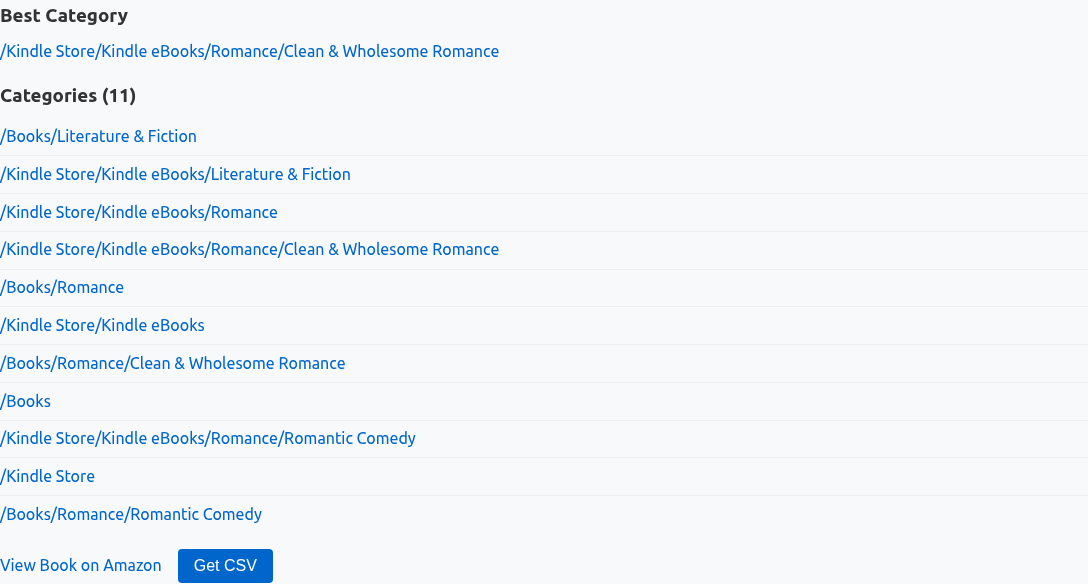
Here is what the results mean:
- Best Category — the most specific category your book belongs to. This is usually the most useful one for advertising.
- Category list — every category your book is in, from broad to specific. Each name is a link: it opens Amazon's list of best-selling books in that category, so you can see who is selling well there.
- Download CSV — saves the categories to a file you can open in Excel or Numbers on your computer.
Step 3: CompetitorLens — find books that compete with yours
CompetitorLens looks for other books that shoppers see when they browse your book. This helps you understand who you are selling against.
- Click the CompetitorLens tab at the top of the page.
- Paste your ASIN (or the whole address from step 1) into the box, then press the Find button.
- Wait about a minute. Author Bear is checking Amazon for competing books, which can take a little while.
As with ASIN Search, make sure the Marketplace dropdown shows your book's market before you press Find — the whole run is scoped to that store, and switching marketplaces clears the previous result.
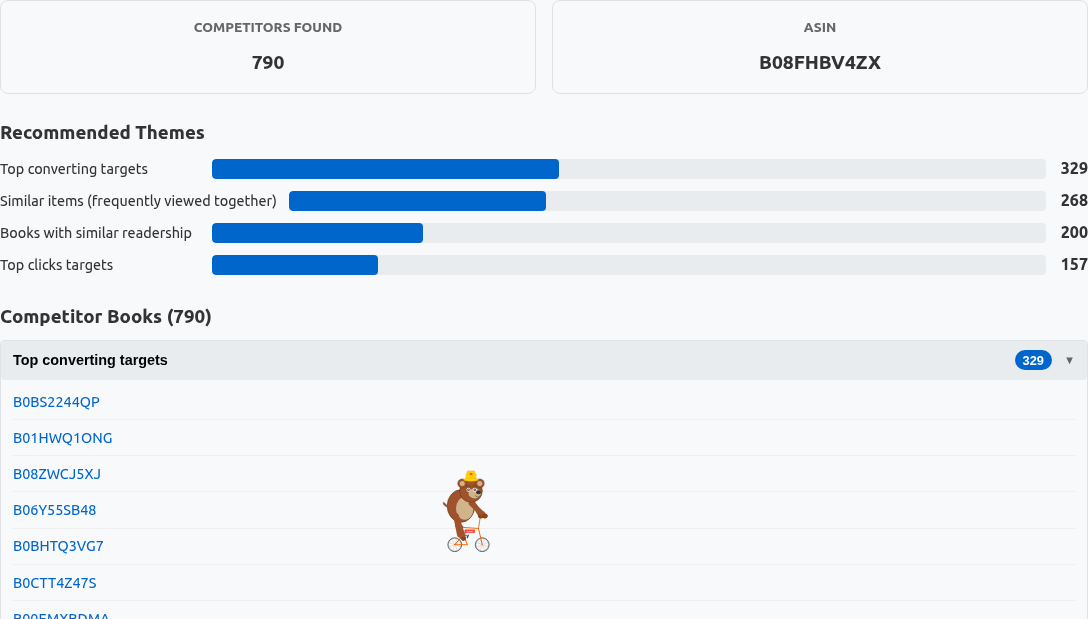
Here is what the results mean:
- Books found — how many competing books Author Bear discovered.
- Themes — the competing books are grouped by theme (for example, the topic or subject they share). Click a theme to open or close its list of books.
- Export — downloads the full list of competing books to a CSV file you can open in Excel or Numbers.
Other tools
Author Bear has three more tabs you can use alongside the steps above. Keyword Search and Category Explorer have the same Marketplace dropdown as the search tabs (defaulting to the United States), so their results are scoped to the Amazon store you pick.
- Keyword Search — paste an ASIN and Amazon returns recommended ad keywords for that book with suggested bids and impression share, as a ranked list you can export to CSV.
- Category Explorer — browse Amazon's entire book category tree without an ASIN: expand categories, see product-count ranges and whether each one is targetable in ads, and open its bestseller list (see the Category Explorer guide).
- Keyword Forge — for a book that isn't listed yet, turn its title, author name, and a few theme words into a starter keyword list that exports as a CSV in Amazon Ads bulk-upload shape (see the Keyword Forge guide).
Troubleshooting
- "Rate Limit Exceeded" message: this means searches are happening faster than allowed. Simply close the message and wait about a minute, then try again.
- No results found: double-check that your ASIN is correct — it is exactly 10 letters and numbers (for example B0DHV4DGVJ), with no spaces or dashes. You can also paste the whole Amazon address instead.
- The page looks blank: wait a few seconds for it to load, then press your browser's reload button.